Co-Pilot Chat
The co-pilot chat is the heart of Pillar. It's an AI-powered conversation interface that helps users find answers, complete tasks, and navigate your application—all without leaving the page.
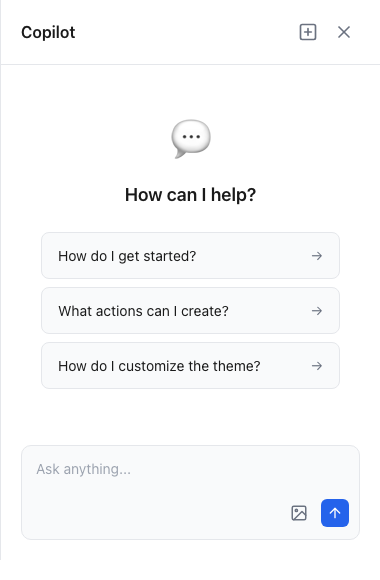
What Users Experience
When users open the help panel, they get:
- Instant answers from your knowledge base
- Suggested actions they can execute with a click
- Guided workflows for complex multi-step tasks
- Context-aware responses based on where they are in your app
How It Works
"Invite [email protected] as an admin"
Finds the "Invite Team Member" action and extracts the email and role from the request.
Opens the invite modal, pre-fills [email protected] with admin role selected.
One click to send the invite. No manual data entry required.
Streaming Responses
The co-pilot streams responses in real-time, so users see answers as they're generated. This creates a natural, conversational feel rather than waiting for a complete response.
Progress indicators show when the co-pilot is:
- Searching your knowledge base
- Processing the query
- Generating a response
Conversation Persistence
Conversations persist across page navigations and browser refreshes. When users return to the panel, they see their recent conversation and can continue where they left off.
Suggested Questions
The panel can display suggested questions based on:
- The current page context
- Common queries for new users
- Follow-up questions based on the conversation
These help users discover what they can ask and reduce friction in getting started.
Context-Aware Responses
When you provide context about the current page, user role, or application state, the co-pilot tailors its responses:
- Page context: "You're on the billing page. Here's how to update your payment method..."
- User role: Suggests admin-only features only to admins
- Error state: "I see you're experiencing an error. Let me help troubleshoot..."
Feedback
Users can provide feedback on responses with thumbs up/down. This feedback is captured in your dashboard for review, helping you identify gaps in your knowledge base and improve over time.
Next Steps
- React Quickstart — Get the panel running in your React app
- Vanilla JS Quickstart — Set up without a framework
- Adding Context — Make responses smarter with context
- Panel Configuration — Customize panel position and behavior